How to Share Wi-Fi Connection via Ethernet (Internet Connection Sharing)
Step 1: Open the Control Panel, go to Network and Internet, and click Network Connections.
OR
Press Windows + R, type ncpa.cpl, and press Enter.
Step 2: Right-click Wi-Fi, select Properties.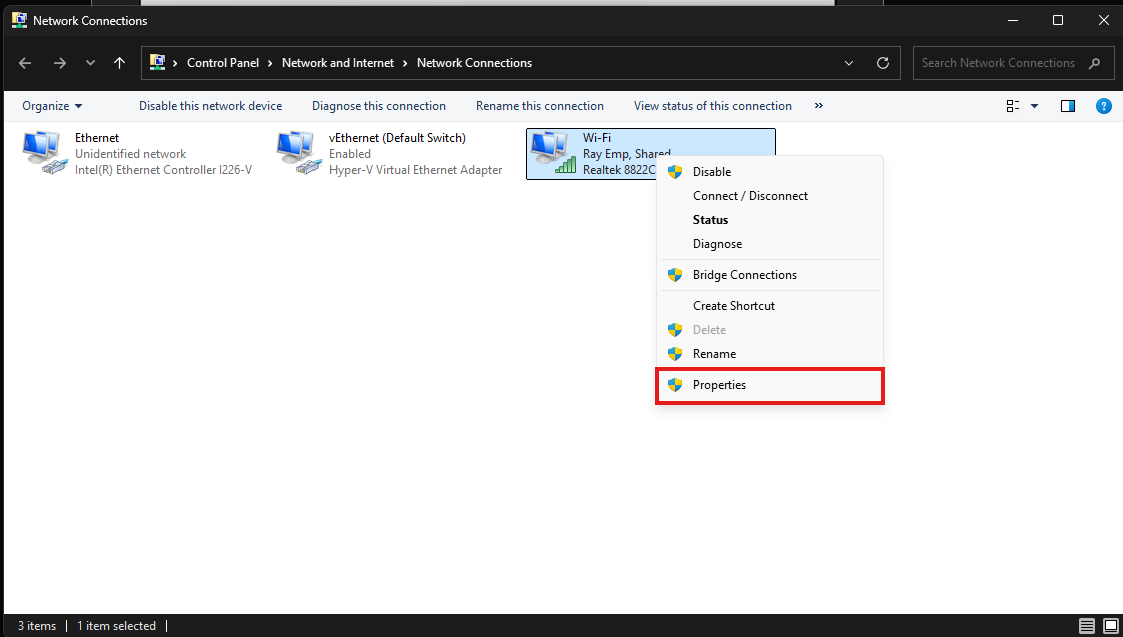
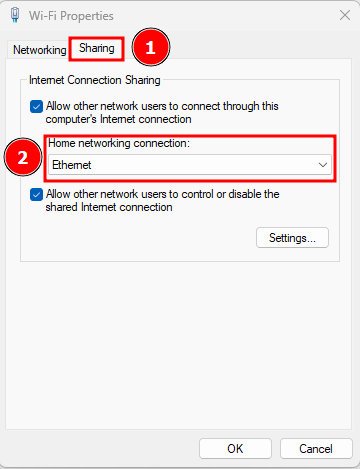
Step 3: Go to the Sharing tab, select your home network connection (for example, Ethernet), and click OK.
Step 4: Now, connect the Ethernet cable and verify that an IP address is assigned. Then, right-click the Ethernet connection and select Status.
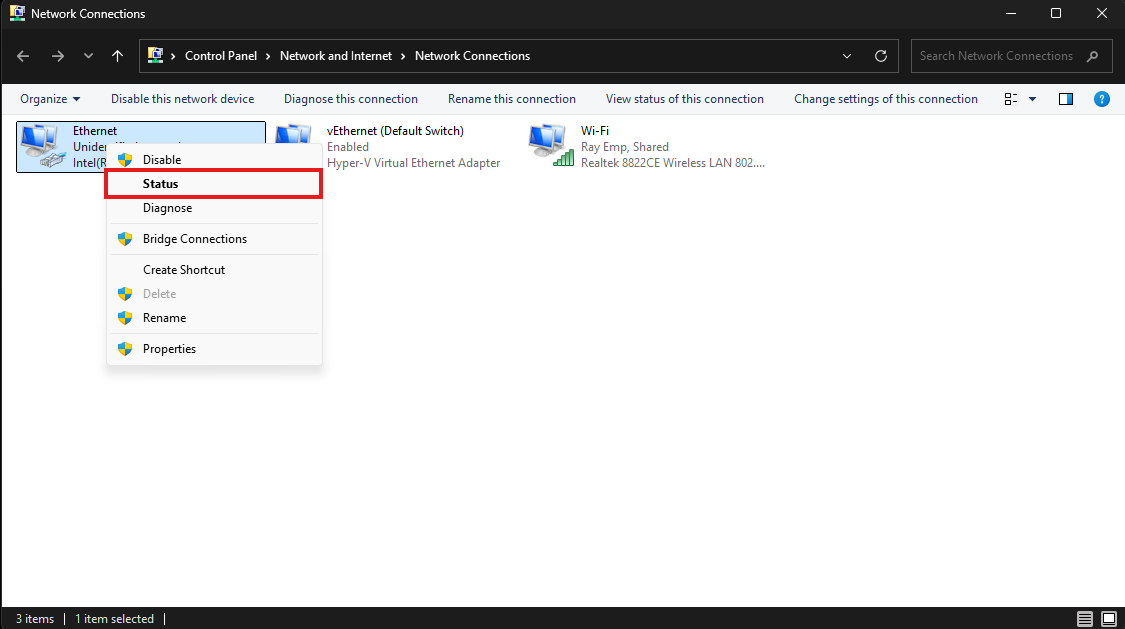
Click on Details…
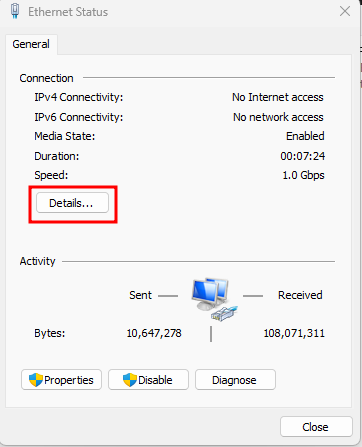
The IP address is now received through Internet Connection Sharing via Wi-Fi.
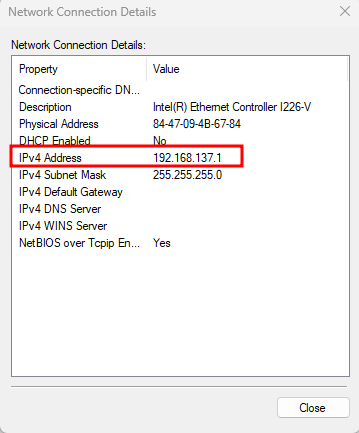
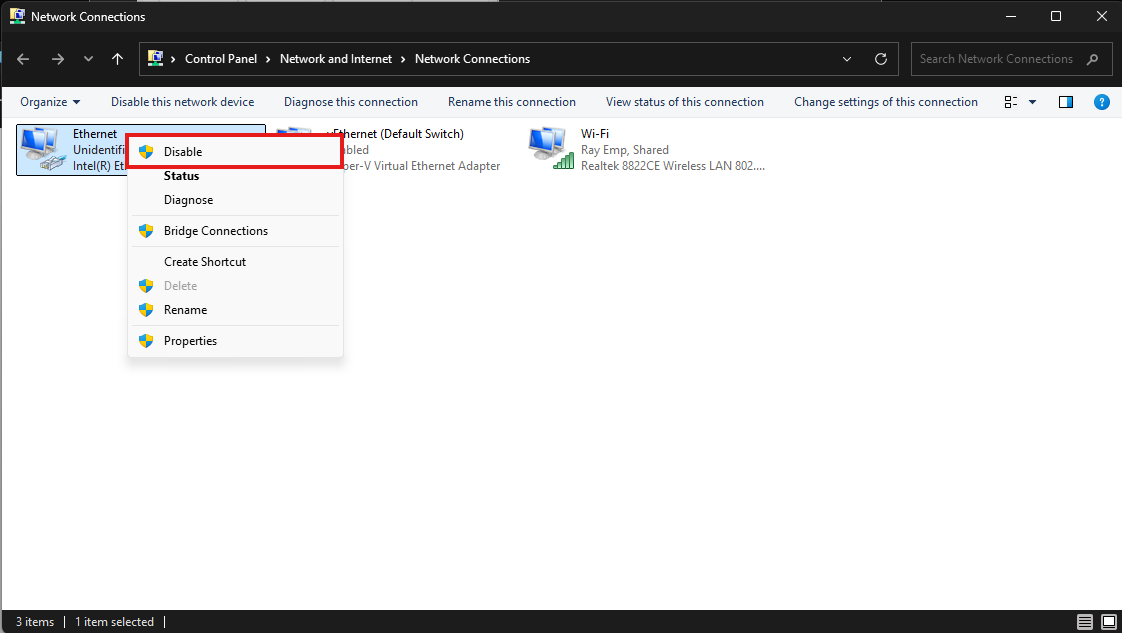
If the IP is not showing, disable the interface, enable it again, and check.