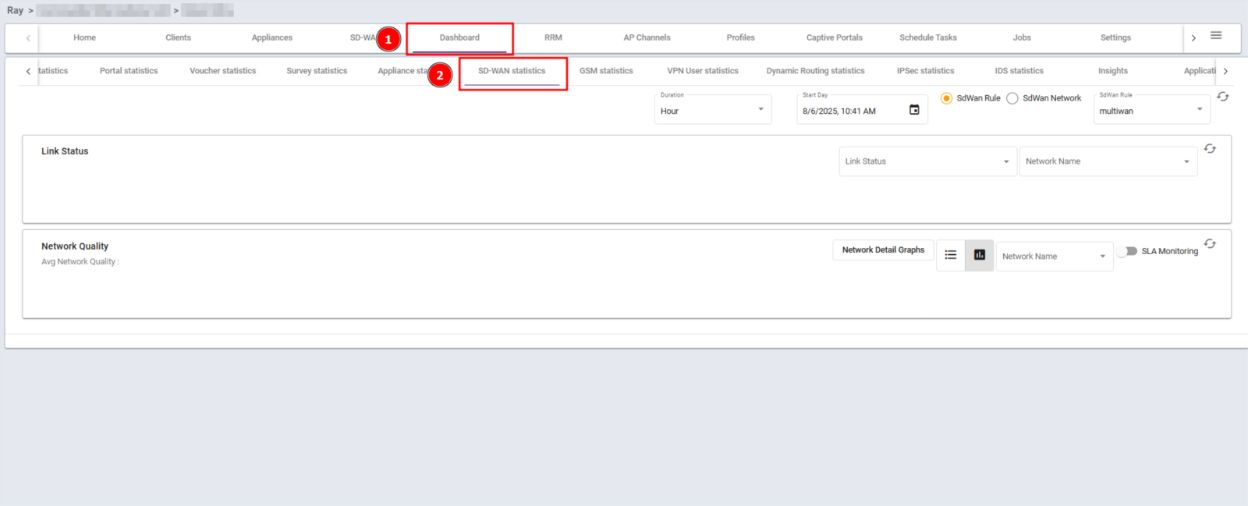
Troubleshooting Guide: SD-WAN Data Not Displaying on Portal
Steps 1: Go to the SD-WAN Interface section, select SD-WAN Rules, and click Force Re-Publish. Wait for 20–30 minutes.
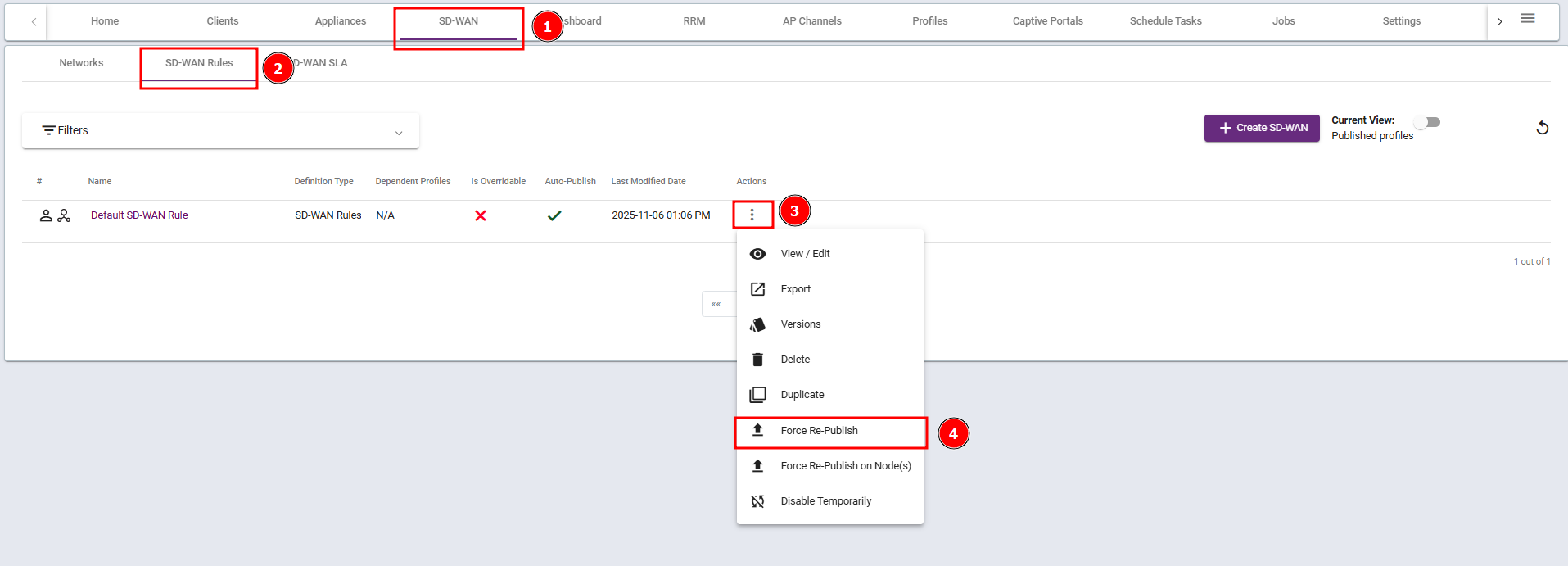
If the issue persists, proceed to Step 2.
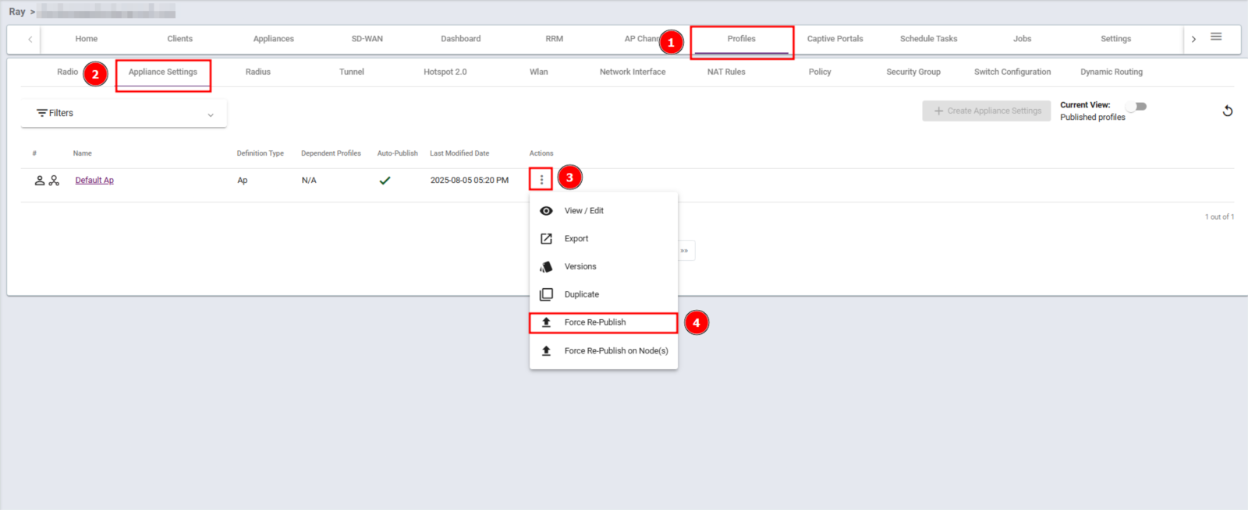
Steps 2: Go to the Profile Interface section, select Appliance Settings, and click Force Re-Publish. Wait for 20–30 minutes.
If the issue persists, proceed to Step 3.
Steps 3: Go to the Appliance section, open Dashboard Settings, check the appropriate box, and click Apply OTA. Then wait for 20–30 minutes for the changes to take effect.
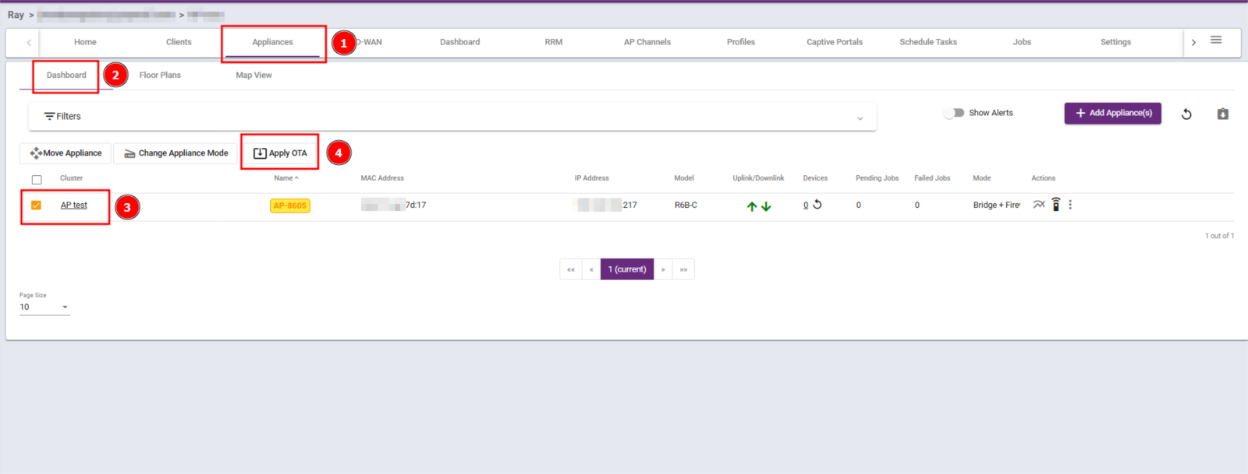
Note: SD-WAN data will only be displayed if there is a valid license subscription that start with Protect subscription.